Why Windows Editors Have More Choice Than Ever
Video editing on Windows has changed a lot. It used to feel like serious editing belonged to expensive studio setups, while casual creators had to settle for basic trimming tools. Now the middle ground is much larger. A Windows laptop or desktop can handle YouTube videos, short films, client projects, social media reels, tutorials, gaming clips, podcasts, and even color-heavy cinematic work if the hardware is strong enough.
That is why choosing the Best Windows software for video editing is not just about finding the most powerful program. Power matters, of course, but so does comfort. A good editor should match your workflow, your skill level, your computer, and the type of video you actually make. A beginner making travel vlogs does not need the same environment as a colorist finishing a documentary. A social media creator may care more about templates and captions than advanced audio mixing.
The best Windows editing software in 2026 gives users a wide range of choices, from simple drag-and-drop tools to professional timelines with deep control.
Adobe Premiere Pro for Professional Editing Workflows
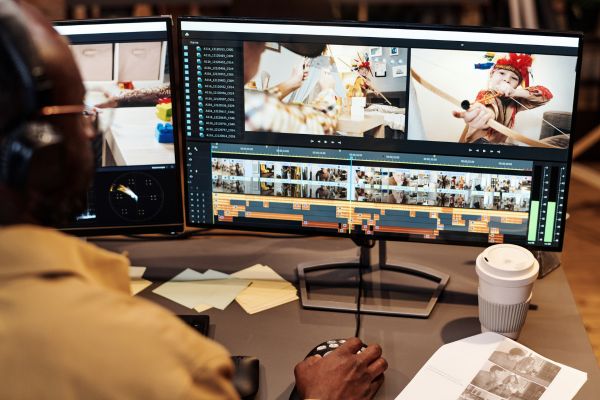
Adobe Premiere Pro remains one of the most familiar names in professional video editing. It is widely used by editors, agencies, YouTubers, filmmakers, and content teams that need a serious timeline-based editor with strong control over footage, audio, effects, captions, color, and exports.
Its biggest strength is depth. Premiere Pro can handle simple edits, but it is really built for layered projects. Multiple camera angles, detailed audio tracks, motion graphics, color adjustments, and collaboration all fit naturally into its environment. It also connects well with other creative tools, which matters for editors who move between video, graphics, photos, and animation.
The learning curve is real. A beginner can open it and make basic cuts, but the interface may feel busy at first. Premiere Pro is best for people who want room to grow and do not mind spending time learning proper editing habits.
DaVinci Resolve for Color, Editing, and Finishing
DaVinci Resolve has become a favorite for people who want professional-level editing without feeling locked into one narrow style of work. It combines editing, color correction, visual effects, motion graphics, and audio post-production in one application. That makes it unusually complete.
Its color tools are especially respected. If you care about the look of your footage, Resolve gives you serious control over contrast, skin tones, shadows, highlights, and overall mood. But it is not only for colorists anymore. The editing workspace is strong enough for full projects, while the audio and effects sections give ambitious creators plenty to explore.
For beginners, Resolve can feel large because there are many rooms inside the same program. Still, it is one of the most rewarding tools to learn. It suits creators who want a polished final result and are willing to build skill over time.
CyberLink PowerDirector for Fast, Friendly Editing
PowerDirector sits in a comfortable space between beginner software and advanced editing suites. It gives Windows users a timeline editor with plenty of creative tools, effects, titles, transitions, and AI-assisted features, but it does not feel as intimidating as some professional platforms.
This makes it useful for YouTubers, small business creators, teachers, vloggers, and hobby editors who want their videos to look clean without spending weeks learning technical menus. The interface is easier to approach, and many common tasks are simple to find.
PowerDirector is not only for casual editing, though. It has enough control for more developed projects, especially when users want a faster path from raw footage to a finished video. It is a practical choice for people who care about speed and simplicity but still want creative flexibility.
Microsoft Clipchamp for Simple Everyday Videos
Clipchamp is a natural option for Windows users who want something easy and accessible. It is especially useful for quick videos, social posts, school projects, internal business clips, slideshows, screen recordings, and simple edits that do not require a heavy desktop application.
The appeal is convenience. Many users can start editing without dealing with a complex interface. The drag-and-drop style feels familiar, and the templates, stock elements, text tools, and recording features make it friendly for people who are not professional editors.
Clipchamp is not the right tool for complex cinematic projects or detailed post-production. It is better for everyday editing, where speed matters more than deep control. For many users, that is exactly enough.
Wondershare Filmora for Creators Who Want Style Without Complexity
Filmora is popular with creators who want polished-looking videos without learning a demanding professional editor. It offers a clear interface, timeline editing, effects, text tools, transitions, music, filters, and AI-assisted features that suit modern online content.
Its main audience is not the high-end film studio. It is the creator who wants a video to feel lively, clean, and ready for YouTube, TikTok, Instagram, online courses, or personal projects. Filmora makes common creative choices easy to apply, which can save time when a project needs to look finished quickly.
The trade-off is that advanced editors may eventually want more control. But for many Windows users, Filmora offers a friendly balance between creative options and ease of use.
CapCut for Social Media and Short-Form Video
CapCut has become closely associated with short-form video culture. It is especially useful for creators making reels, TikToks, YouTube Shorts, quick ads, captions-heavy clips, and visually energetic edits.
Its strength is speed. CapCut understands the style of modern social video, where captions, effects, transitions, music syncing, and vertical formats matter. It helps creators move quickly from idea to publishable clip without building everything manually.
For long-form editing, careful sound design, or complex professional projects, CapCut may not feel as complete as traditional desktop editors. But for short-form content, it fits the way many creators actually work today.
VEGAS Pro for Timeline Editors Who Like Speed
VEGAS Pro has a long history on Windows and still appeals to editors who like a fast, direct timeline experience. It is often appreciated by users who want strong video and audio handling without following the exact workflow of Premiere Pro or Resolve.
The editing style feels fluid once you understand it. Cutting, arranging, adjusting audio, and working through a project can be quick. This makes VEGAS Pro interesting for independent creators, event editors, music video makers, and longtime Windows users who prefer its approach.
It may not have the same broad industry presence as Premiere Pro, but it has a loyal user base for a reason. For editors who enjoy its timeline logic, it can feel very natural.
Shotcut for Free and Open-Source Editing
Shotcut is a strong reminder that good video editing does not always require a paid platform. It is free, open-source, and available for Windows, which makes it a useful option for students, hobbyists, and anyone who wants to learn editing without committing to a subscription.
It supports a wide range of formats and offers timeline editing, filters, transitions, audio controls, and export options. The interface is not as polished as some commercial tools, but it is capable and honest. It gives users the tools they need without pushing them into a heavy ecosystem.
Shotcut is best for patient beginners and budget-conscious editors who want real editing control. It may take a little experimenting, but it can handle much more than simple trimming.
Choosing the Right Windows Video Editor
The best choice depends on what you make. For professional editing, Premiere Pro and DaVinci Resolve are the strongest names to consider. For color work and finishing, Resolve stands out. For approachable editing with plenty of features, PowerDirector and Filmora make sense. For quick social videos, CapCut and Clipchamp are easier to live with. For a free open-source path, Shotcut is worth trying. For editors who like a fast Windows-native timeline, VEGAS Pro still has its place.
Hardware also matters. A heavy editor will not feel enjoyable on a weak laptop, especially with 4K footage. Before choosing software, it is worth thinking about your computer, your storage, your graphics card, and the kind of footage you usually edit.
Final Thoughts
Video editing software on Windows is no longer a one-size-fits-all decision. The best tool is not always the most advanced one. It is the one that helps you finish better videos with less friction.
Some creators need professional timelines and advanced color tools. Others need quick captions, templates, and simple exports. Some want free software to learn the basics. Others want a complete editing environment for client work. The good news is that Windows users have strong options at every level.
A thoughtful choice can make editing feel less like a technical battle and more like a creative process. And that, in the end, is what good software should do: help the story move from scattered clips to something people actually want to watch.